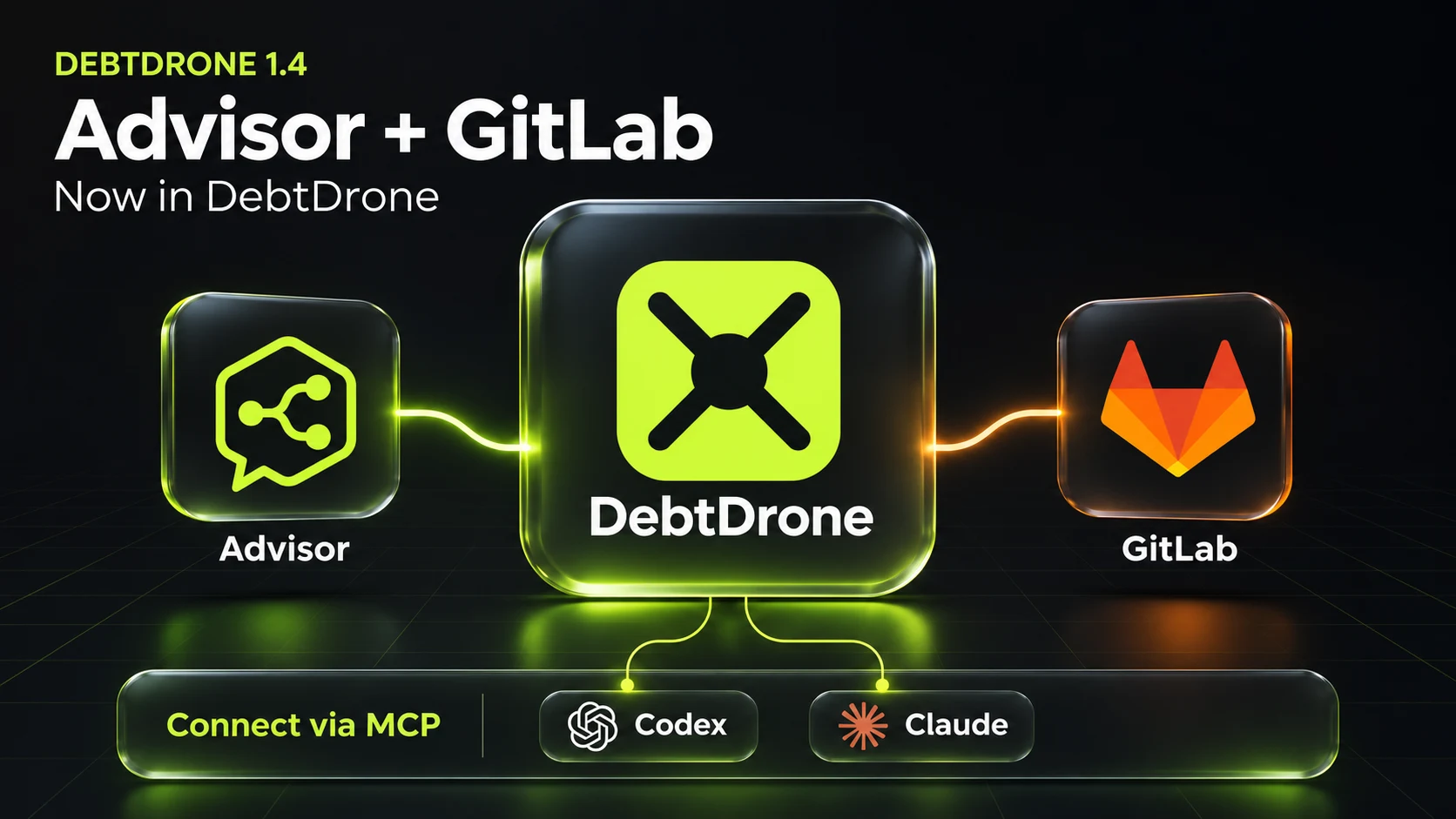
This release brings DebtDrone Advisor and GitLab repository support. The Advisor answers questions about your scans, with every answer tied to the findings and source it used, and can turn a finding into a pull request you review and approve. And DebtDrone now connects to GitLab, both GitLab.com and self-hosted instances, so GitLab repositories can be imported and scanned alongside your GitHub ones.
Below is what each one does, what it deliberately does not do yet, and how to get started.
The Advisor
A scan tells you what is wrong. The Advisor helps you decide what to do about it. Open it from Advisor in the sidebar, or from a repository, and ask in plain language: which findings to fix first, why a function was flagged, what a refactor of it could look like.
Answers you can check
Answers stay within the scans selected for the conversation. When source is available, the Advisor reads it at the commit recorded by each scan, so an answer does not mix in code from a later push.
Each answer:
- cites its evidence. Claims link to the findings and source lines they rest on, so you can open them and judge for yourself.
- states its limits. When a question goes beyond what the scan measured, the answer says so. A ranking by severity and complexity, for example, comes with the reminder that it does not measure business risk.
- is built to say when the evidence runs out. When the selected scans do not contain enough to answer a question, the Advisor is designed to report insufficient evidence rather than guess. Like any answer from a model, it is worth checking against the citations it gives.
Follow-up questions see the chat's recent answers, so you can ask "explain the second one" without repeating yourself. Earlier answers are context for the conversation, never proof: each new answer cites only evidence it retrieved from the scan.
Saved chats, per project and across your organization
Chats are saved and grouped by repository, so you can come back to a conversation with its answers and citations intact. To ask a question that spans several repositories, start a chat under All repositories. You choose which repositories and which of their scans the chat covers, and the answers stay within that selection.
From a finding to a pull request
For a source-code finding, the Advisor can draft a fix. Nothing reaches your repository until you approve it:
- Generate. The Advisor reads the affected file at the latest commit and proposes a patch for that finding.
- Review the diff. You see the exact change, alongside two separate signals, labelled for what they are:
- Deterministic checks of the patch itself, such as whether it changes code the finding does not need. The code is not built or run at this stage.
- Advice from a model reading the diff. This is a second opinion, not a test result and not an approval.
- Approve and open the pull request. Only the person who asked for the fix can approve it. Approval is tied to that exact patch: if the file changes in the meantime, the fix has to be generated again.
Once the pull request is open, your own CI builds and tests it like any other change, and your usual code review applies.
Use it from your own tools
The Advisor is also available over the Model Context Protocol (MCP). Connect Claude, Claude Code, Codex or Cursor from Settings → General → MCP connections, and choose which organization and repositories the client may read. That access is read-only: the client can list repositories, read findings and the source behind them, and look up vulnerability details. It cannot change anything, and you can revoke it from the same page at any time.
Availability and the AI allowance
The Advisor is a Pro and Enterprise feature. Each organization has a shared AI allowance for its billing period, and the Advisor shows how much of it is left and when it resets. When the allowance is used up, new questions and fixes wait until the reset, and every saved chat stays readable.
GitLab repositories
DebtDrone now imports and scans repositories from GitLab. Connect it from Settings → Integrations → Code Hosting, choose Add New Connection → GitLab, then pick where your GitLab is hosted.
GitLab.com
Choose GitLab.com and select Connect GitLab. You approve read-only access on GitLab.com itself: DebtDrone asks for the read_api and read_repository scopes, enough to list your projects and clone them for scanning, and never write access.
Self-hosted GitLab
Choose Self-hosted GitLab and enter:
- Your instance URL, for example
https://gitlab.company.com. An instance served under a path, such ashttps://tools.company.com/gitlab, works too. - A personal access token with only the
read_apiandread_repositoryscopes. Create one in GitLab under Preferences → Access tokens.
DebtDrone tests the connection before saving it: that the URL is a GitLab instance, that the token works, and that it has the scopes it needs. If something is wrong, the message says what: an invalid URL, a certificate problem, an expired token or a missing scope.
The instance must be reachable from the public internet over HTTPS, with a certificate from a publicly trusted authority. An instance reachable only through a VPN or a private network cannot be connected by entering its URL, and DebtDrone will tell you so rather than try. Your token is stored encrypted, is only ever sent to the instance it belongs to, and is never shown again.
What you can do with it
- Import your projects. Personal, group and nested subgroup projects, public and private, appear under Repositories, where you choose which ones to scan.
- Scan and rescan. GitLab repositories go through the same scanner and the same results as GitHub ones: complexity, dependencies, security findings and debt estimates.
- Connect more than one instance. GitLab.com and several self-hosted instances can sit side by side in one workspace, each labelled with its host and account. Two instances can even contain projects with the same path; they stay separate repositories.
- Keep history through changes. A project keeps its scan history when it is renamed or moved to another group, and when you reconnect.
- Disconnect safely. Disconnecting removes the stored credential and stops syncing, and keeps your imported repositories and their scan history. For GitLab.com, DebtDrone also attempts to revoke its authorization. If revocation cannot be confirmed, the app tells you how to remove access in GitLab. A self-hosted access token is yours to revoke in GitLab.
Not yet available for GitLab
Some features still work only with GitHub, and we would rather say so than let you find out:
- Advisor answers grounded in source code, and Advisor fixes. The Advisor can discuss a GitLab scan's findings, but reading GitLab source and opening merge requests are not supported yet.
- Automatic scans on push, and comments on merge requests. GitLab repositories are scanned when you start a scan, not from webhooks.
Getting started
- Connect GitLab: open Settings → Integrations → Code Hosting and add a GitLab connection, then choose repositories to scan under Repositories.
- Ask the Advisor: open Advisor, pick a scanned repository, and ask what to fix first. On Pro and Enterprise, open a source-code finding to draft a fix.
- Bring it to your editor: connect your MCP client under Settings → General → MCP connections.
As always, the changelog lists every change as it ships. We would love to hear how the Advisor and GitLab work for your team.